Task Capture: Eight Ways to Get Work Into Your Plan Without Retyping
Work is born everywhere except your task list: in a call, an email, a whiteboard, a customer complaint. Tasks that are captured late or retyped by hand are the first to be lost. Here are six ways to capture them where they appear.
Task capture is getting work into your plan at the moment it appears, with as little retyping as possible. CoMng.AI supports eight routes: AI Task Builder (from project data), AI Brief (from a brief you write), voice input, importing a file or photo, email with a secret token, converting customer feedback, creating tasks from a whiteboard with ARI, and change requests (including ARI-drafted ones).
- Eight routes: AI Task Builder, AI Brief, voice, file or photo, email, customer feedback, whiteboard and change requests.
- Review built in: the AI Task Builder, AI Brief and imports can all route through a change request before tasks are added.
- Context travels: email, feedback and whiteboard capture keep the source attached to the work.
- Then structure it: AI Structure Tasks, Smart Assign and priority scoring turn raw capture into a plan.
Why Capture Is the Weakest Link
Most plans are accurate when they are written and stale a week later, because new work arrives through channels that do not touch the plan. The fix is not discipline; it is to make every channel a two-click path into the same task list.
Eight Ways to Capture a Task
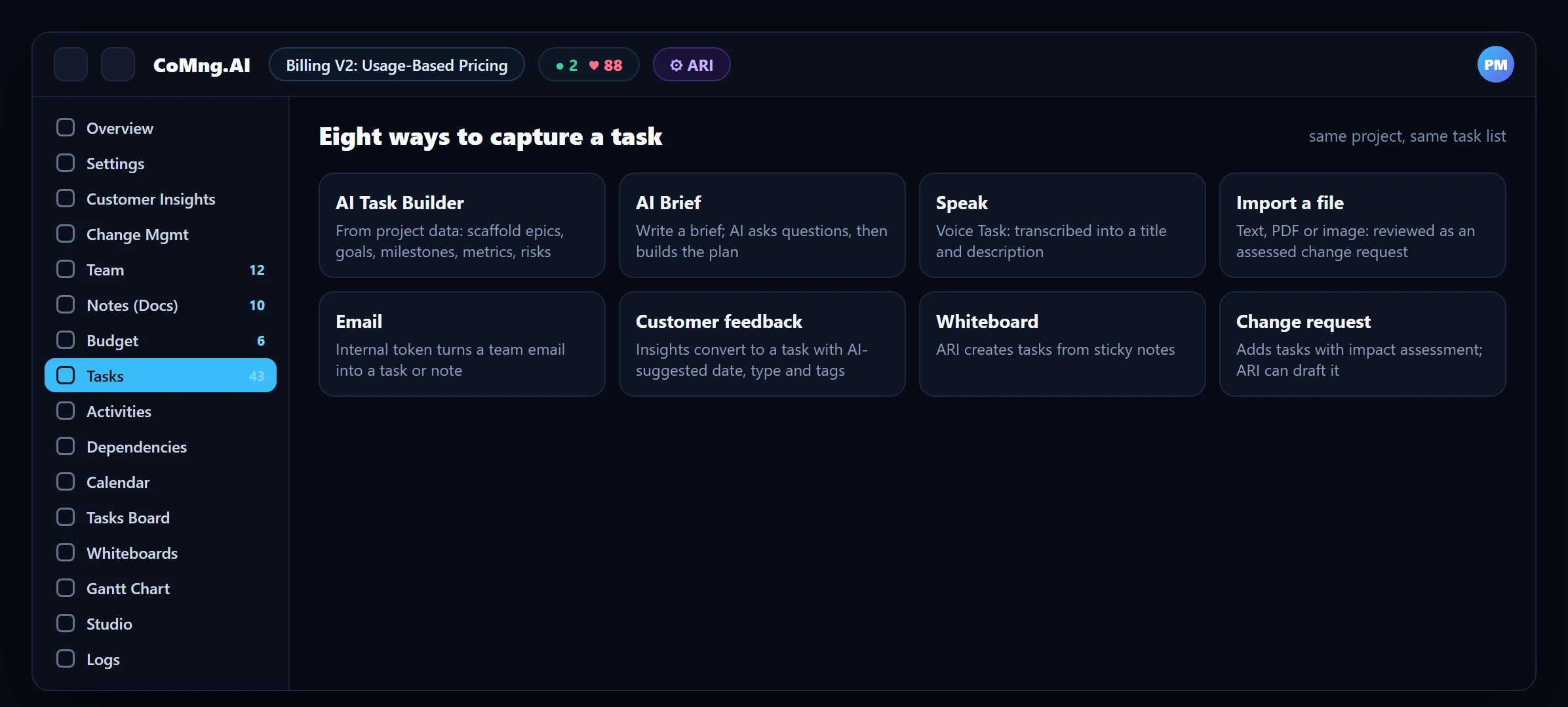
1. AI Task Builder (from project data)
Choose one or more sources, such as a Project Scaffold (4 to 8 top-level epics), General, Milestones, Goals, Metrics or Risks, and generate tasks from what the project already knows. Pick Auto Apply (created directly) or Change Request (review first). Verify Plan Coverage then runs to catch gaps.
2. AI Brief (from a brief you write)
Describe a deliverable or initiative in your own words; AI asks a few clarifying questions and generates a complete, structured task plan, applied immediately or saved as a pending change request.
3. Speak it
Voice Task transcribes what you say into a task title and description. Include context ("review the API documentation with John by end of next week") and review before saving, as transcription is not always perfect.
4. Import a file or photo
Import Tasks reads a text file, a PDF or an image, extracts every task it can find with its fields, and creates a fully assessed change request so you review the batch before it enters the plan.
5. Email it
Emails to the project's inbound address carrying the Internal Secret Token can become a task, note, budget entry, calendar event or activity. Share that token only with trusted people and tools.
6. Convert customer feedback
Customer emails with the Customer Insights token arrive classified; convert an insight to a task and AI suggests a due date, type and tags.
7. Create from the whiteboard
Ask ARI to create tasks from sticky notes; for a photographed board use Import Tasks.
8. Change requests, including ARI-drafted ones
A change request can add tasks as part of a proposed change, with an impact assessment and a sandbox preview. ARI can draft such a request from a conversation, and Pulse drafts them for gaps it finds.
The Two AI Generators in Detail
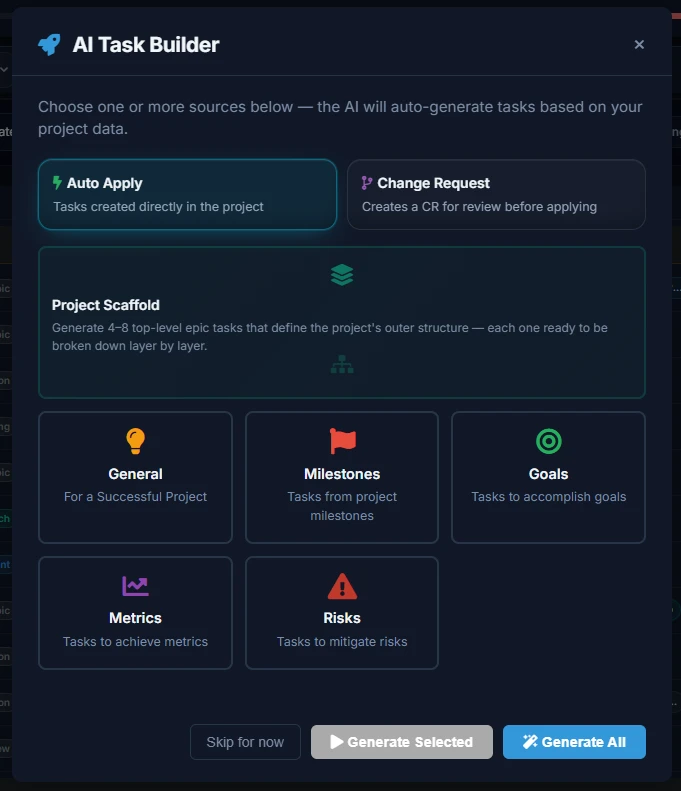
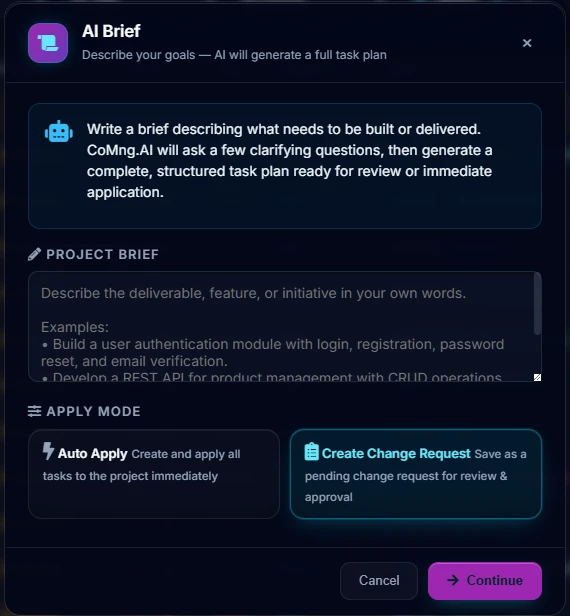
Both can create tasks directly or as a pending change request. Use the change-request mode when the project is already committed, so new work is reviewed, assessed and approved like any other change.
After Capture: Turn Raw Tasks Into a Plan
- AI Structure Tasks organises flat tasks into a parent and child hierarchy.
- Merge Duplicate Tasks removes overlaps between channels.
- Smart Assign proposes owners; Calculate Priorities scores the list; Auto Tag labels it.
- Set effort and dates so the Resource Planner and Should Start signals work.
For the planning end of this workflow see Automated WBS Generation and Whiteboard to Project Plan; for the intake side, Customer Feedback: Email to Backlog.
Four Rules for Good Capture
- Capture at the source: voice and email beat remembering later.
- Always capture the context (who asked, why, by when).
- Review before it enters the plan: routes that batch (file, photo) are reviewed as a change request.
- Close the loop: update the status of the insight or email you converted.
- Tasks remembered, then retyped
- Sources lost between inbox and tracker
- Imports that bypass review
- Six capture routes into one list
- Source and context kept with the task
- Batches reviewed as assessed change requests
About CoMng.AI
CoMng.AI is an AI-native project management platform that generates a project's plan, tasks, risks and budget from a description or document, monitors project health in real time, and gives both human teams and AI coding agents live access to the same project data, with a person approving every AI-generated change.
Try it on one real project, free
Create a free project, import or generate a plan, and see Pulse, milestone flags and capacity in the first hour.
Frequently Asked Questions
How many ways are there to create tasks in CoMng.AI?
Eight main routes: AI Task Builder, AI Brief, voice, file or photo import, email, customer feedback conversion, whiteboard (ARI) and change requests, including ones drafted by ARI.
What is task capture?
Getting work into the project plan at the moment it appears, from a call, email, board or customer message, with minimal retyping.
Can I create tasks by voice in CoMng.AI?
Yes. Voice Task transcribes speech into a task title and description. It needs microphone permission in your browser, and you should review the text before saving.
Does Import Tasks add tasks directly?
It extracts tasks from a text file, PDF or image and creates a fully assessed change request, so you review and approve the batch before the tasks are added.
Can an email become a task?
Yes. An email to the project's inbound address containing the Internal Secret Token can become a task, note, budget entry, calendar event or activity. Customer feedback uses a separate token and lands as an insight.
How do I avoid duplicate tasks from different channels?
Run Merge Duplicate Tasks (Smart Merge), which detects overlapping tasks and consolidates them.
Related reading
See the full guide: Planning, Scope & Change Control Guide