Automated WBS Generation From a SOW: From Blank Page to Full Task Tree
A work breakdown structure is the part of planning that causes the most paralysis: a blank outline and a deadline. Here is how to get from a SOW to a structured, prioritised, audited task tree without starting from nothing.
AI can generate a work breakdown structure from a SOW. CoMng.AI drafts tasks from the document, from project data with the AI Task Builder (scaffold epics, goals, milestones, metrics, risks), or from a brief you write with AI Brief, applied directly or as a change request; then it structures them, scores priority and runs Verify Plan Coverage. A person reviews the result.
- Generate, then structure: AI Task Builder drafts tasks from your project data (scaffold, goals, milestones, metrics, risks), AI Brief from a brief you write; AI Structure Tasks organises them into a hierarchy.
- Priority and tags built in: Calculate Priorities scores tasks, and Auto Tag labels them, so the list is sortable straight away.
- Audit what was generated: Verify Plan Coverage runs after bulk generation to catch missing or partial deliverables.
- Shape it by hand: Break Down Task splits one task into subtasks; Smart Merge removes duplicates.
Why the WBS Is Where Plans Stall
A good WBS decomposes the work until each leaf is something one person can own, estimate and finish. It is also the slowest part of planning because every task is a small decision: name, size, owner, date, parent. Teams either under-decompose (vague tasks that hide risk) or over-decompose (hundreds of rows nobody maintains).
AI is useful here as a first draft: it produces a structured starting point quickly, and a person with domain knowledge corrects it. That correction is much faster than creation.
Step 1: Generate the Task Tree
There are several entry points, depending on what you have:
- From a document: create the project from a SOW (see Create a Project Plan From a Document) and the framework and tasks are generated with it.
- From project data: the AI Task Builder generates tasks from sources such as a project scaffold, goals, milestones, metrics and risks.
- From a brief you write: AI Brief asks a few clarifying questions, then generates a structured task plan.
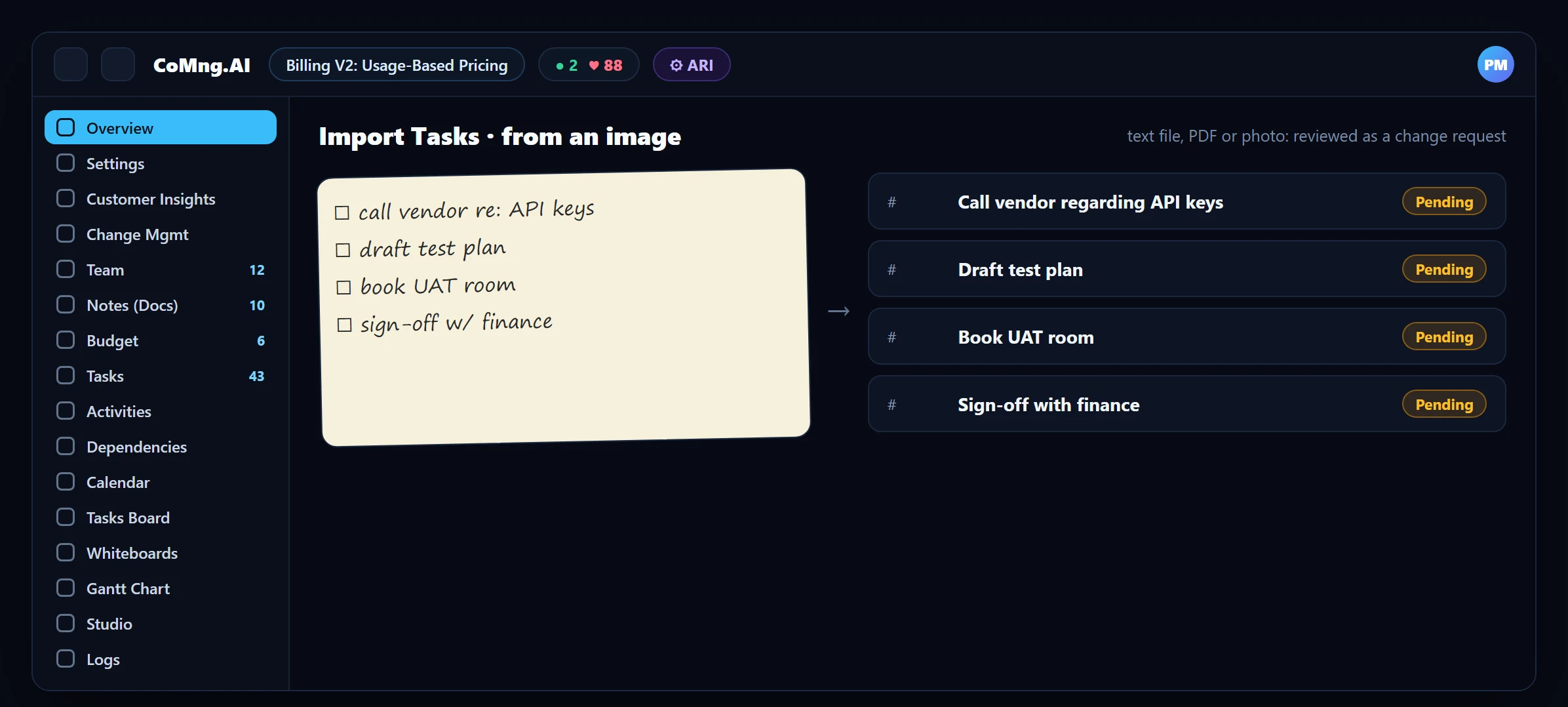
- From files and photos: Import Tasks reads a text file, a PDF, or an image such as a photographed whiteboard or handwritten list, and sends the extracted tasks through an assessed change request so you review them before they are added.
- From voice: record or upload audio and the AI transcribes it into tasks.
AI Task Builder and AI Brief: Two Ways to Generate Tasks
The Tasks page has two AI generators that are easy to confuse, because they start from different places:
| AI Task Builder | AI Brief | |
|---|---|---|
| Starts from | What the project already knows (its data) | A brief you write in your own words |
| Inputs | One or more sources: Project Scaffold, General, Milestones, Goals, Metrics, Risks | A description of the deliverable, feature or initiative |
| Interaction | Choose sources, then Generate Selected or Generate All | AI asks a few clarifying questions, then generates the plan |
| Best for | Building out a new project from its framework, or filling gaps against goals, milestones and risks | Planning a specific piece of work, such as an authentication module or an API |
| Apply modes | Auto Apply (created directly) or Change Request (review first) | Auto Apply (create and apply immediately) or Create Change Request (pending review and approval) |
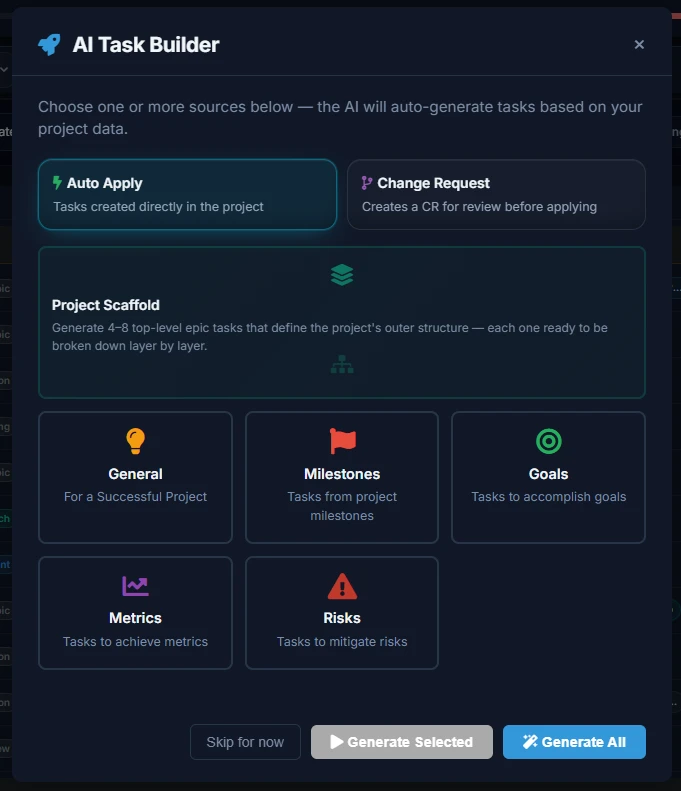
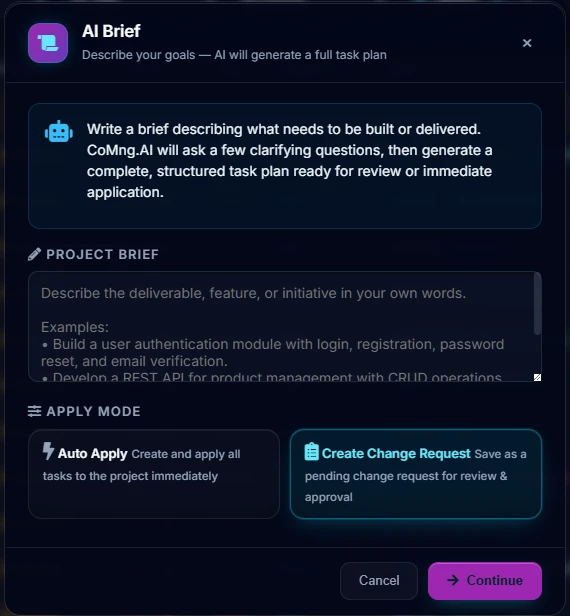
Project Scaffold deserves a note: it generates four to eight top-level epic tasks that define the project's outer structure, each ready to be broken down layer by layer, which makes it a good first pass before the detailed sources. Both generators offer the same safety choice: Auto Apply when you trust the output and want speed, Change Request when you want to review, edit and approve before anything enters the plan.
Step 2: Structure, Prioritise and Tag
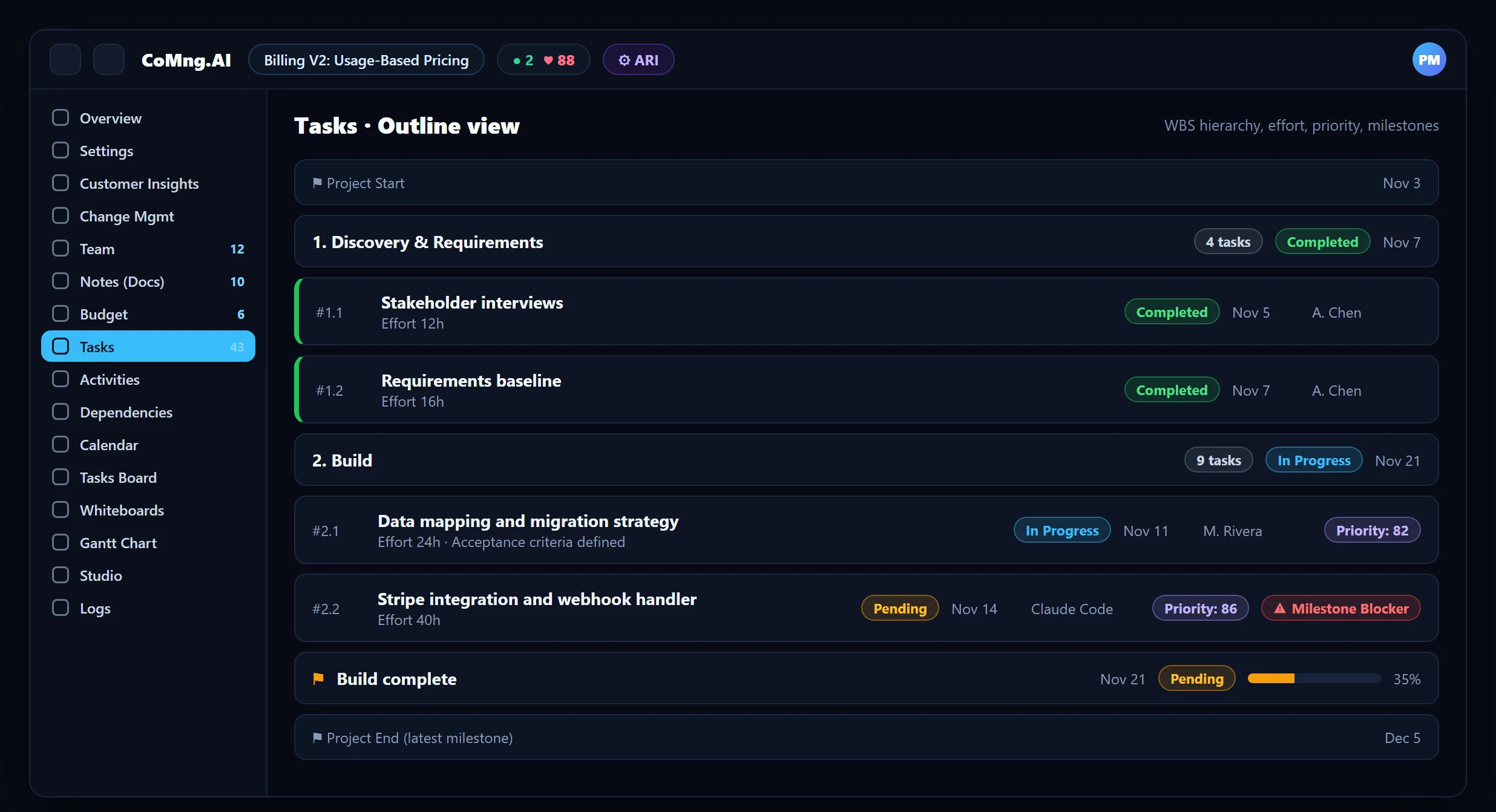
Raw generated tasks are a flat list. The toolbar on the Tasks page turns it into a plan:
| Tool | What it does |
|---|---|
| AI Structure Tasks | Auto-organises the list into a hierarchy (phases, work packages, tasks) |
| Calculate Priorities | Scores each task; the score appears as a Priority badge on the row |
| Auto Tag | Applies colour-coded tags shared across tasks, notes and budget lines |
| Smart Assign | Assigns unassigned tasks to the best-fit team member, taking workload into account |
| Smart Merge | Detects and merges duplicate or near-duplicate tasks |
Step 3: Audit the Result
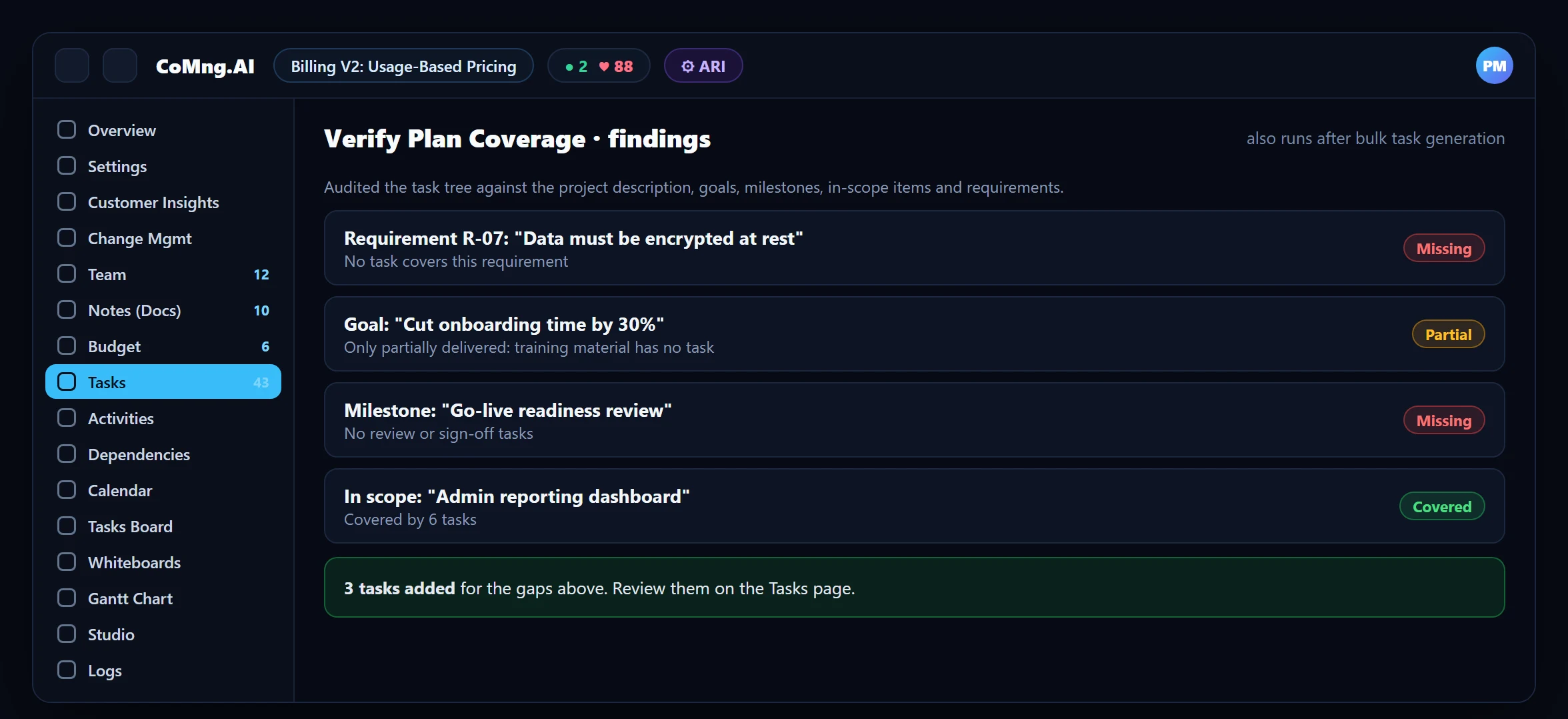
Generated does not mean complete. Verify Plan Coverage compares the task tree with the project's description, goals, milestones, in-scope items and requirements, adds tasks for anything missing or only partly delivered, and lists what it found. This answers the question every sponsor asks: does the plan really cover what we committed to?
Step 4: Refine Where It Matters
- Break Down Task splits one task into child subtasks in a click, from that task's own toolbar.
- Acceptance criteria on each task define what finished means, which also makes AI-agent work orders precise.
- Dependencies: let AI scan and suggest task dependencies, then confirm them; they drive Gantt sequencing and blocked-task detection.
- Milestone dependencies: confirm which tasks each milestone needs, so conflicts are flagged precisely.
Take the plan to execution with AI Workplan Export if parts of it will be handled by coding agents.
Setting Realistic Expectations
Generation speed depends on the document and the model, and quality depends on the input. A specific SOW produces a specific plan; a vague one produces a vague plan. Plan to spend your time on review and estimation rather than on typing.
- Blank outline and a deadline
- Tasks named inconsistently
- Coverage checked by eye
- A generated first draft to react to
- Structured hierarchy with priorities and tags
- Coverage audited against the commitments
About CoMng.AI
CoMng.AI is an AI-native project management platform that generates a project's plan, tasks, risks and budget from a description or document, monitors project health in real time, and gives both human teams and AI coding agents live access to the same project data, with a person approving every AI-generated change.
Turn your SOW into a reviewed project plan today
Upload a charter, SOW or proposal and review a structured plan with tasks, milestones and risks, with a person approving every AI-generated change.
Frequently Asked Questions
Can AI generate a WBS from a SOW?
Yes. Creating a project from a SOW generates the framework and tasks, and on any existing project the AI Task Builder (from project data) and AI Brief (from a brief you write) can generate more. You then structure, prioritise and audit them.
How do I turn a flat task list into a hierarchy?
Use AI Structure Tasks on the Tasks page to organise tasks into a hierarchy, or drag and edit the outline by hand.
What is Verify Plan Coverage?
An audit of the task tree against the project description, goals, milestones, in-scope items and requirements. It creates tasks for gaps and lists its findings. It also runs automatically after bulk task generation.
Can I import tasks from a photo or PDF?
Yes. Import Tasks reads a text file, a PDF, or an image such as a photographed whiteboard or handwritten list, extracts the tasks and creates an assessed change request; once you approve it, the tasks are added.
How granular should a WBS be?
Each leaf task should be something one person can own, estimate and finish. Use Break Down Task when a task is too large to estimate with confidence.
What is the difference between the AI Task Builder and AI Brief?
The AI Task Builder generates tasks from your project data (sources such as Project Scaffold, Goals, Milestones, Metrics and Risks). AI Brief generates a task plan from a brief you write, after asking clarifying questions. Both can apply directly or create a change request.
Related reading
See the full guide: Planning, Scope & Change Control Guide