Project Baselining in Gantt Charts: How to Measure Schedule Slip
Without a baseline, "we are two weeks late" is an opinion. With one, it is a measurement. Baselining in Gantt charts is the simplest way to turn schedule drift into evidence you can act on.
A project baseline is a saved snapshot of the schedule (each task's start and end dates) at an agreed moment, used as the reference for measuring slip. On a Gantt chart you compare the current schedule with the baseline: in CoMng.AI, Save Baseline captures the dates and ghost bars show where each task originally sat.
- What it is: a named snapshot of every task's start and end dates at a moment you choose.
- How slip shows: ghost bars sit at the original dates behind the current bars; the gap is the slip in days.
- When to save: at each gate: plan approval, before a sprint, after a scope change or re-plan.
- Keep a history: baselines do not update themselves; save a new one after each re-plan instead of overwriting.
What Is a Project Baseline?
A baseline is the approved reference version of your plan: scope, schedule and cost as they stood when everyone agreed. Schedule baselining captures each task's planned start and end. Later, you compare reality with that snapshot and the difference is your variance.
The point is not to freeze the plan; plans should change. The point is to remember what the plan was, so that change is visible, explainable and countable.
Baselining in the CoMng.AI Gantt Chart
Save Baseline
Click Save Baseline in the Gantt toolbar and give it a descriptive name, for example "Client sign-off 2026-11-01". The snapshot captures the calculated start and end date of every task that has date information.
Select it to compare
Once a baseline exists, a Baseline dropdown appears. Choose one and a thin outlined ghost bar appears behind each task bar at its original dates.
Read the gap
If a task has not moved, the ghost bar hides behind the current bar. If it slipped right, the ghost bar sits to the left and the gap is the slip. If it moved earlier, the ghost bar is to the right.
Return to normal
Choose No Baseline to hide the comparison. Deleting a baseline removes only the snapshot, never any task dates.
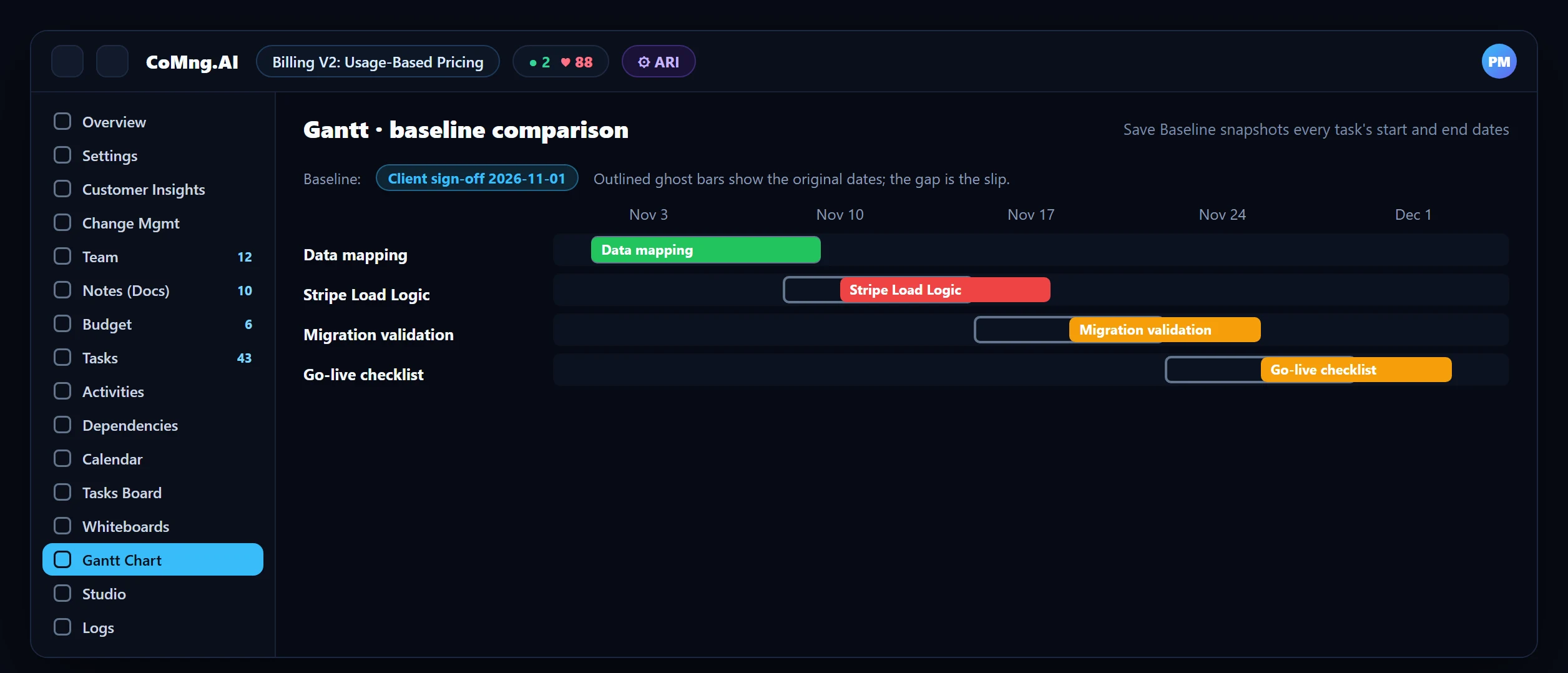
The Gantt itself is a read-only visualisation: edit dates on the Tasks page (or with Optimize Timeline), then use the Gantt to see the effect.
When to Save a Baseline
| Moment | Why baseline then |
|---|---|
| Plan or scope approved | The reference for everything that follows |
| Right after importing a plan | An imported schedule (for example from MS Project) gives you a CoMng.AI reference from day one |
| Before a sprint or phase | Measure slip per phase, not just overall |
| After a scope change is applied | Keeps approved changes from being counted as slip |
| After a deliberate re-plan | Start a fresh reference, keep the old one as history |
Baselines capture the schedule at the moment you save and do not update automatically. Save a new named baseline after each re-plan rather than replacing the old one; several baselines give you a history of how the schedule changed.
Reading Slip Without Fooling Yourself
- Slip on the critical path matters most. Use Critical Path Analysis in the Project Management Hub to see which chain drives the end date; slip elsewhere may have float.
- Separate approved change from drift. A task moved by an approved change request is a decision, not a failure. Re-baseline after applying it.
- Look at milestones first. A milestone flagged Blocked means tasks are scheduled after it; compare those tasks with the baseline to see when the problem began.
Pair baselining with AI Project Delay Prediction (to find slip early) and AI Project Timeline Optimization (to recover it).
- "We are late" with no numbers
- Edits that erase the original plan
- Slip discovered at the review
- Slip measured per task in days
- Original dates preserved as named baselines
- Slip visible on the Gantt any day
About CoMng.AI
CoMng.AI is an AI-native project management platform that generates a project's plan, tasks, risks and budget from a description or document, monitors project health in real time, and gives both human teams and AI coding agents live access to the same project data, with a person approving every AI-generated change.
Try it on one real project, free
Create a free project, import or generate a plan, and see Pulse, milestone flags and capacity in the first hour.
Frequently Asked Questions
What is baselining in project management?
Saving an approved snapshot of the plan (schedule, scope or cost) as the reference against which progress and variance are measured.
How do I save a baseline in a Gantt chart in CoMng.AI?
Click Save Baseline in the Gantt toolbar, name it, and save. The snapshot captures each task's start and end date. Select it from the Baseline dropdown to compare with ghost bars.
Do baselines update when tasks change?
No. A baseline captures the schedule at the moment you save it. Save a new named baseline after each re-plan.
Can I keep more than one baseline?
Yes. Keeping several baselines builds a history of schedule changes; you can delete one without affecting any task dates.
Can I edit dates on the Gantt chart?
No. The Gantt is read-only in CoMng.AI. Edit dates on the Tasks page or with Optimize Timeline and view the result on the Gantt.
Related reading
See the full guide: Planning, Scope & Change Control Guide