
Most project budget tools are ledgers. They accept what you type, calculate totals, and show you a number. The thinking – figuring out what to budget, justifying it to stakeholders, tracking whether payments have actually been made, understanding what happens if approval is delayed – that’s left entirely to you.
That gap between “storing numbers” and “managing money intelligently” is where budget overruns live. Not in the math, which is rarely wrong. In the decisions: the cost item that never got formally approved, the partial payment that wasn’t recorded, the vendor that was chosen without comparing alternatives, the budget line that sat in “Pending” for three weeks while the project slipped.
This article covers how CoMng.AI’s Budget module handles the full lifecycle – from AI-generated lines and justification documents to partial payment tracking, multi-currency KPIs, and the AI tools that turn every budget line into a governed, defensible, outcome-connected decision.
Understanding the Two Statuses Every Budget Line Carries
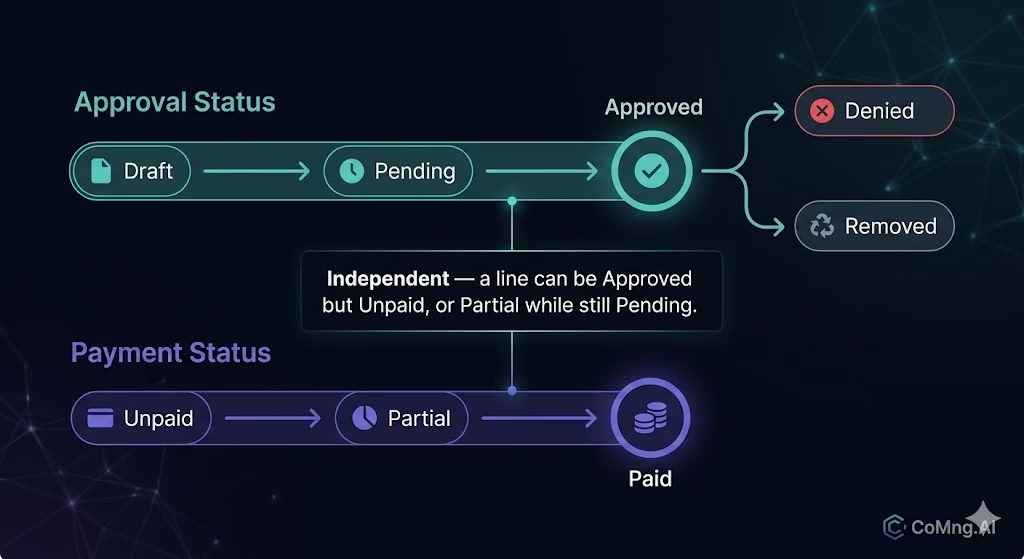
Before diving into features, one distinction matters more than any other in this module: Approval Status and Payment Status are completely separate.
Most teams conflate these. They mark something “Approved” and assume that means it’s been paid. Or they see “Paid” and assume it went through proper approval. In practice the two things happen independently, at different times, involving different people – and confusing them is how budgets lose their audit trail.
Approval Status tracks the governance lifecycle – whether the expenditure has been authorized:
| Status | Meaning |
|---|---|
| Draft | Created but not yet submitted for review |
| Pending | Submitted and awaiting a decision |
| Approved | Authorized for spending |
| Denied | Rejected – no money should move |
| Removed | Excluded from KPI totals but preserved on record for audit purposes |
Payment Status tracks whether money has actually moved – independently of approval:
| Status | Meaning |
|---|---|
| Unpaid | No payments recorded against this line |
| Partial | Some payments made but total is less than the line amount |
| Paid | Fully settled |
This separation is the foundation of the module’s governance design. A line can be Approved but Unpaid (authorized, not yet paid). It can be Approved and Partial (partially disbursed, remainder outstanding). It cannot – by design – be accurately described by a single status field.
Key takeaway: The KPI bar’s Spent and Remaining metrics are driven by actual payment records, not by the line amount or the approval status. If a line is Approved for $10,000 but only $4,000 has been recorded as paid, Spent shows $4,000 and Remaining reflects $6,000 – not the full $10,000. The numbers tell the truth about what has actually left the organization, not what was planned to leave.
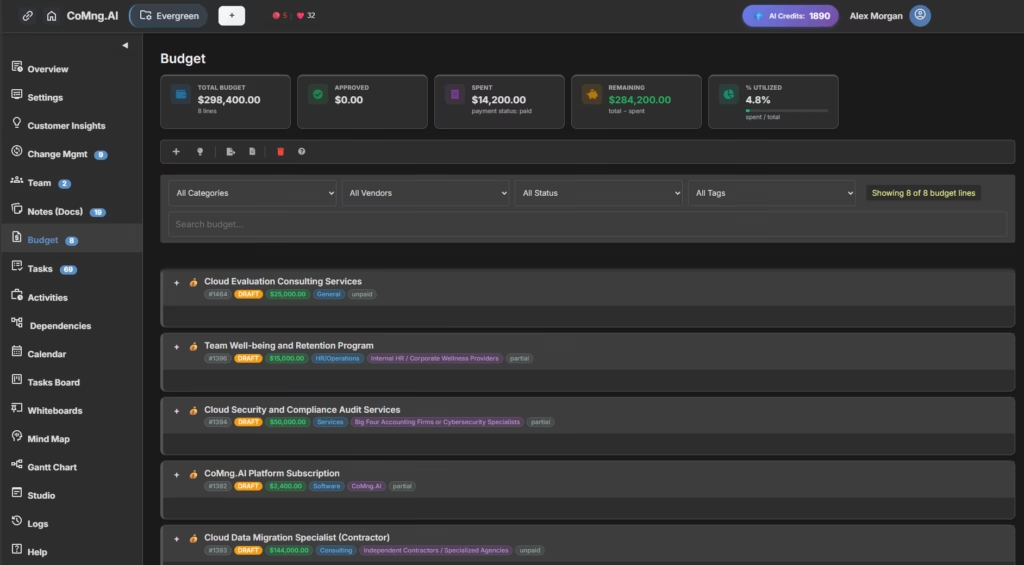
The KPI Bar: What You Actually Know at a Glance
At the top of every Budget page, a live KPI bar shows six financial metrics calculated from current data:
Total Budget – the sum of all non-removed line amounts. Removed lines are excluded, which is why using “Removed” rather than deleting preserves your audit trail without inflating totals.
Approved – sum of lines with Approved status, with a sub-label showing the pending total. You can see at a glance how much has been authorized versus how much is still awaiting sign-off.
Spent – sum of all actual payment amounts recorded across all lines. This is the number that matters for cash flow. It moves only when a payment is logged – not when a line is created or approved.
Remaining – Total Budget minus Spent. Shown in red when negative (overspent). This is the live answer to “how much budget do we have left.”
% Utilized – Spent ÷ Total Budget × 100. Color-coded: green below 70%, orange from 70–89%, red at 90% and above. A project at 85% utilization with 40% of deliverables remaining is a different conversation than one at 85% with 90% complete.
Overdue – count of lines past their payment due date that are not fully paid. Only appears when overdue lines exist. A silent but important signal – overdue payment obligations are financial risk, not just administrative tidiness.
Multi-Currency Support
CoMng.AI supports USD ($), ILS (₪), EUR (€), and GBP (£) on budget lines. When a project has lines in multiple currencies, all KPI metrics are shown per currency – there is no automatic currency conversion. This is intentional: automatic conversion introduces exchange rate assumptions that may not match your organization’s accounting.
A software license in USD, a contractor invoice in GBP, and an office expense in EUR each appear in their own currency column in the KPI bar. You see the true figures in each currency rather than an approximated aggregate. For teams managing multi-currency project budgets across international vendors and contractors, this is the approach that produces accurate books rather than convenient but misleading totals.
Recording Partial Payments: The Payment Ledger
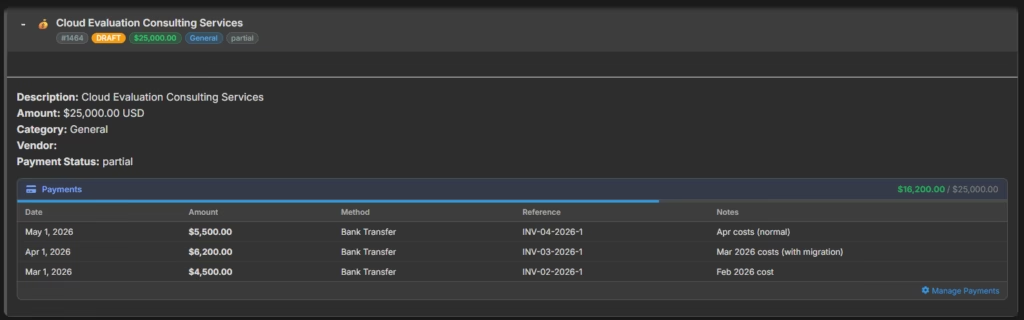
Every budget line has its own payment ledger – an independent record of every disbursement made against that line.
Each payment entry captures:
- Amount – the payment amount (can be less than, equal to, or – if recording an overpayment – more than the line total)
- Date – when the payment was made
- Method – Bank Transfer, Credit Card, Cash, Check, PayPal, or Other
- Reference/Receipt number – the external reference for reconciliation (invoice number, PO number, bank reference)
- Notes – any context needed for the record
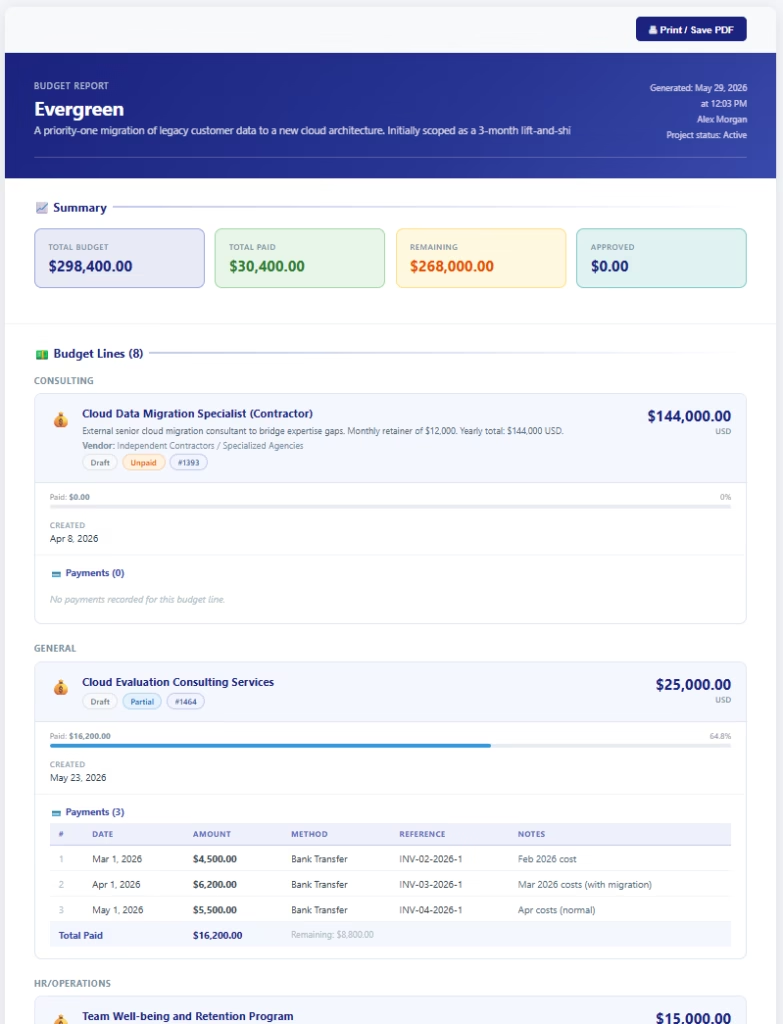
A progress bar on each line shows amount paid versus total line amount – the visual equivalent of “how far through this payment obligation are we.”
Why partial payments matter: Most real project costs don’t arrive as a single invoice. A contractor might invoice monthly against a fixed-fee engagement. A vendor might require a deposit plus a balance on delivery. Enterprise software licenses might be paid quarterly. Treating these as a single “paid/unpaid” binary obscures cash flow reality and makes budget reports inaccurate.
Recording each partial payment as it occurs means:
- The Spent KPI reflects actual disbursements, not planned ones
- The Remaining KPI shows true available budget, not an approximation
- The audit trail matches your accounts payable records exactly
- Overdue counts surface lines where scheduled payments have been missed
The practical workflow for a multi-payment line: Create the budget line with the full contracted amount. Record each payment as it’s made – deposit, interim payments, final balance. The progress bar fills. When the progress bar is full and the total matches, the Payment Status automatically reflects Paid. At any point before that, it shows Partial and the progress bar shows exactly how far through you are.
The AI Tools: From Data Entry to Decision Support
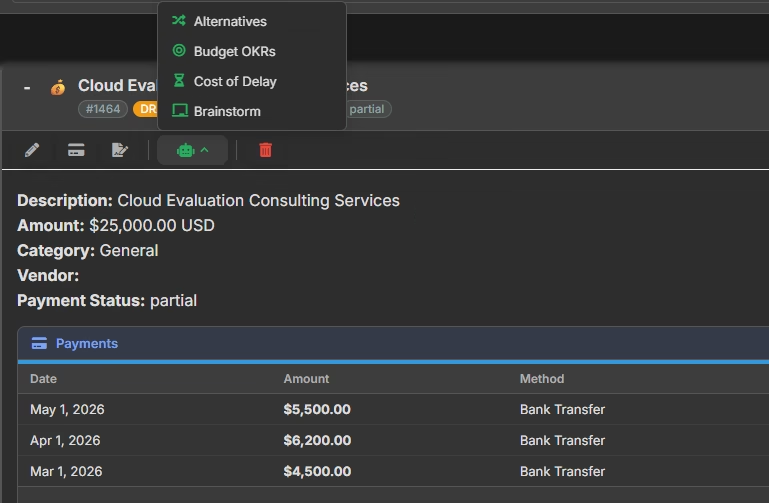
This is where CoMng.AI’s budget module separates from every spreadsheet and basic PM budget tracker on the market. Each budget line has a suite of AI tools that don’t just help you fill in forms – they generate the analysis and documents that make every cost defensible, comparable, and outcome-connected.
Suggest Budget Lines – Start With a Complete Budget
When you open the Budget page for the first time on a project with no lines, the AI automatically reads your project’s goals, scope, tasks, risks, and team structure and generates a set of draft budget lines with estimated amounts and categories.
You don’t start from a blank page. You start from an AI-drafted budget that reflects what your project actually needs – and then refine from there. For projects where budget estimation is typically a 2–3 day exercise of cross-referencing SOWs, team plans, and past projects, this reduces that to 20–30 minutes of review and adjustment.
Suggest Details – Fill the Form From Context
When adding or editing any individual line, Suggest Details fills in the remaining form fields from whatever context you’ve provided. Type a description – “Annual Figma license for the design team” – and the AI fills in: title, estimated amount, currency, payment method, and approver remarks based on your project context. Fields you’ve already filled are preserved.
This is the difference between a budget tool that makes you look things up and one that already knows what you’re likely to need.
Justification Document – Get Approval Faster
Budget approval is rarely a financial problem. It’s a communication problem. The approver doesn’t have the context to evaluate whether the cost is necessary, aligned with project goals, or proportionate to the value it delivers. The PM knows this – but writing a formal justification document for every line item is time-consuming enough that most teams submit line amounts without adequate explanation and then get stuck in approval loops.
The Justification Document AI tool generates a complete budget justification for a specific line in one click. The document covers:
- Why this expenditure is necessary for the project
- How it aligns with specific project goals
- The consequences of not approving it – what risks materialize, what deliverables are blocked
- Industry context and benchmarking where relevant
The document is saved as a project note – one justification note per budget line – creating a permanent record that the approval decision was made with full information.
The practical impact: An approver who receives a budget line with a justification document attached can make a faster, more confident decision. The PM doesn’t spend 45 minutes writing the case; the AI drafts it in 30 seconds, the PM reviews and refines it, and the approval cycle shortens from days to hours.
Cost of Delay – Accelerate Approval on Critical Lines
Some budget lines aren’t just important – they’re blocking. A software license that’s awaiting approval is preventing three developers from starting work. A contractor SOW sitting in “Pending” means a milestone is at risk.
Cost of Delay analysis answers the question every approver should be asked but rarely is: what does it cost the project if this approval waits another week?
The AI analyzes the specific budget line in the context of the full project and calculates the impact in three dimensions:
- Cost – what additional expenditure results from the delay (rescheduled work, extended contracts, penalties)
- Schedule – how many days of project timeline are at risk for each week of approval delay
- Value – what business value is foregone if the project is delayed as a consequence
The result is a document that transforms an abstract “please approve this” request into a concrete “here is what waiting costs us” business case. It’s the single most effective tool for moving budget lines out of approval limbo – because it gives the approver a reason to act now rather than later.
Alternatives – Compare Before You Commit
How to do AI alternatives analysis for vendor selection is one of the most searched questions in the project budget space – and one of the most under-served by existing tools. Most PMs do it manually: open three browser tabs, compare pricing pages, write up a comparison in a document, and present it to the approver.
The Alternatives AI tool does this for any budget line in one click. It compares the current vendor or approach against other options with a cost and trade-off analysis covering:
- Cost-effective alternatives (budget-conscious options that meet core requirements)
- Premium alternatives (higher investment, higher capability)
- Simplified alternatives (streamlined approaches with fewer moving parts)
- Other vendor options (alternative suppliers for the same category)
The analysis is saved as a project note, creating an audit record that the decision was made by comparing options – not by defaulting to the first vendor mentioned. For procurement-sensitive industries and organizations with vendor approval requirements, this document is evidence of due diligence.
Budget OKRs – Connect Spend to Outcomes
The most common reason budget lines get denied isn’t the amount. It’s the inability to answer: what does this expense achieve?
Budget OKRs generates Objectives and Key Results specifically for a budget line item – turning a cost into a measurable outcome framework. A $12,000 security audit line becomes:
- Objective: Ensure the platform meets enterprise security standards before the Q3 launch
- Key Result 1: Zero critical vulnerabilities identified in post-audit penetration testing
- Key Result 2: SOC 2 Type I compliance documented and verified
- Key Result 3: Security findings reviewed and remediated within 14 days of audit completion
This connects the expenditure to deliverables in language that resonates with executives, finance teams, and boards – the audiences who approve budgets but don’t read task lists. When every budget line has an OKR attached, the budget review meeting shifts from “what are we spending on” to “what outcomes are we buying.”
Putting It All Together: The Budget Line Workflow
Here’s how a single budget line moves through its complete lifecycle in CoMng.AI, with AI accelerating every friction point:
1. Creation – Add the line manually, or let AI suggest it automatically on project creation. Use Suggest Details to fill in estimated amount, currency, payment method, and approver remarks from context.
2. Pre-approval documentation – Generate the Justification Document. If vendor selection needs support, run Alternatives analysis. If the line is time-sensitive, run Cost of Delay analysis and include it with the submission. Generate Budget OKRs to connect the spend to measurable outcomes.
3. Submission – Set the Approval Status to Pending. The approver has the line amount, the justification, the alternatives analysis, and the OKR framework. The information needed for a confident decision is all in one place.
4. Approval decision – Approver reviews and sets status to Approved (or Denied, with remarks). If Denied, the line remains in the record. If Removed later, it stays in history for audit purposes.
5. Payment tracking – As invoices arrive, record each payment against the line’s payment ledger – Amount, Date, Method, Reference. The progress bar fills. Spent and Remaining KPIs update. Payment Status moves from Unpaid → Partial → Paid as payments accumulate.
6. Reporting – Export the full Budget Report as a formatted HTML document (printable and shareable) or download all lines as CSV. The report reflects the current state of every line – approval status, payment status, actual spend – in a format suitable for finance teams and stakeholders.
Why This Matters Beyond the Budget Page
Budget data in CoMng.AI doesn’t live in isolation. It’s connected to the rest of the project in ways that make it more useful than a standalone finance tracker.
Payment dates appear on the Unified Timeline on the Project Management Hub – alongside tasks, milestones, and activities. A budget payment due on the same day as a milestone delivery is visible as a scheduling and cash flow risk, not just a finance item.
Budget lines can be linked to specific tasks – so the cost of a software license is connected to the development tasks that depend on it, and the cost of a contractor is linked to the deliverables they’re responsible for. This traceability answers “what did we spend on X” in both directions.
The Mind Map Executive Dashboard shows Budget Usage as one of its gauge charts – alongside Health Score and Completion percentage. A board-level view of the project includes budget burn as part of the overall picture, not as a separate finance report.
The % Utilized color-coding (green → orange → red) gives PMs an immediate signal in the KPI bar without having to do any arithmetic. 88% utilized with 60% of deliverables complete is a very different situation than 88% utilized with 92% complete – and the budget page shows you the number clearly so you can make that judgment.
Getting Started
The Budget module is accessible from the left navigation of any project. If you’re starting a new project:
Let AI build the first draft. On your first visit to a project’s Budget page with no lines, the AI automatically reads the project and suggests a set of draft lines. Review them, adjust amounts, and accept the ones that apply. You start with a realistic budget skeleton rather than a blank page.
Add the fields that matter for governance. For each line, set the Approver Name before submitting. Attach Related Tasks so the cost is traceable to deliverables. Set a Payment Due Date so the Overdue count catches anything that slips.
Use the AI tools before you submit. Generate the Justification Document and Budget OKRs before moving a line to Pending. An approver who receives a fully documented line makes a faster decision. The 2 minutes you spend generating these documents typically saves several days of approval delay.
Record payments as they happen. Don’t wait until a line is fully paid to record it. Each partial payment entered keeps your Spent and Remaining KPIs accurate and your audit trail complete.
The goal isn’t a bigger budget spreadsheet. It’s a budget that thinks alongside you – generating the analysis, producing the documentation, and surfacing the risks so that every financial decision in your project is made with full information and leaves a complete record.
Ready to see your project budget managed intelligently? Start free at CoMng.AI.
Internal Link Suggestions
- Auto-Optimize Your Project Schedule in One Click
- How to Turn Meeting Notes and Client Emails into a Formal Change Request
- The Centaur Manager: How AI Lets One PM Do the Work of Five
- PMI on project cost management
- Cost of Delay concept – Wikipedia
Leave a Reply