
You’ve just absorbed a two-week scope change. Three tasks are overdue. A key team member is now at 140% capacity. And the milestone you promised a stakeholder last month is now mathematically impossible.
So you open your Gantt chart and start moving dates.
Task by task. Dependency by dependency. Recalculating effort, rebalancing workload, adjusting milestones to reflect the new reality. It takes two hours – minimum. And the moment you finish, someone tells you another assumption has changed.
This is one of the most common and most punishing tax on project managers’ time. And it’s entirely unnecessary.
By the end of this article, you’ll understand exactly how AI-powered timeline optimization works, when to use Auto Apply versus a formal Change Request, and why getting this right is one of the biggest leverage points in project planning.
What Is AI Timeline Optimization?
AI timeline optimization is the ability to hand your entire project schedule – tasks, subtasks, dependencies, assignee workloads, milestone dates – to an AI that analyzes all of it simultaneously and proposes a revised schedule. One action, full recalculation.
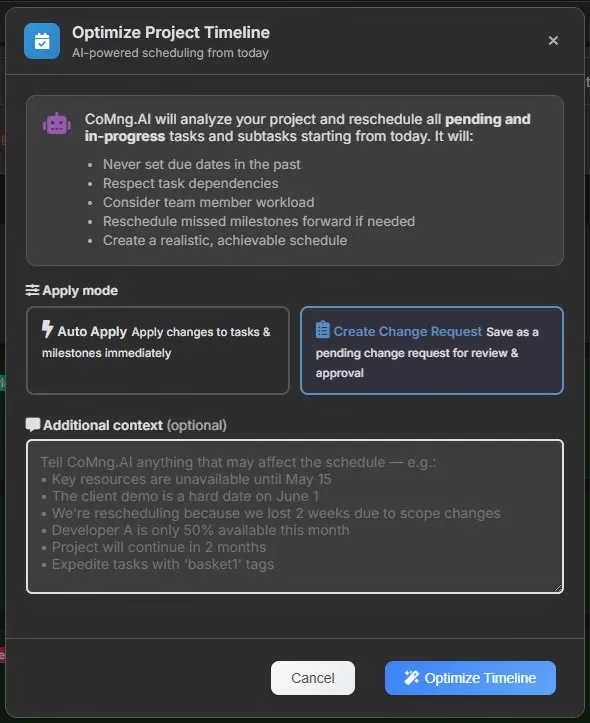
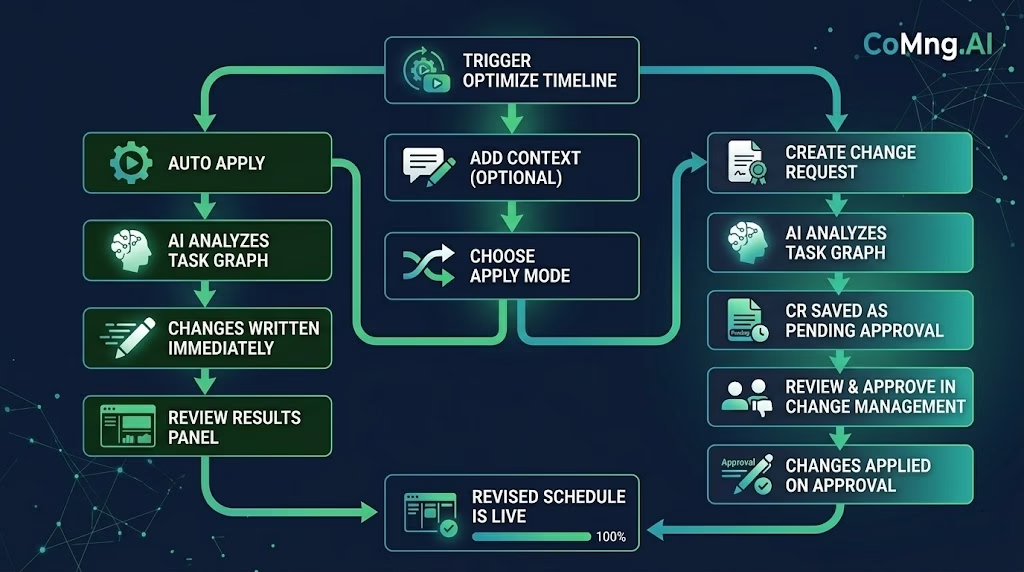
In CoMng.AI this is the Optimize Timeline feature. Trigger it from the toolbar, choose how you want changes applied, add any context the AI needs to know, and click. The AI processes your full task graph and either applies changes immediately or packages them as a formal Change Request for review.
Key takeaway: This isn’t auto-scheduling in the traditional sense, where a tool shifts dates by arithmetic. The AI reasons about your project – weighing effort estimates, resource constraints, dependency chains, and hard deadlines – the way an experienced project manager would when rebuilding a schedule from scratch.
Why Rescheduling Manually Is a Trap
The Cascading Problem
Project schedules aren’t a list of independent dates. They’re a network. Change one task’s due date and it may cascade through five dependent tasks, overflow a team member’s capacity on a specific week, and push a milestone past a stakeholder commitment.
Most project tracking software gives you the tools to see these cascades after you’ve broken them – red dependency lines in a Gantt chart, overallocation warnings, missed milestone alerts. What it doesn’t give you is a way to fix all of them at once.
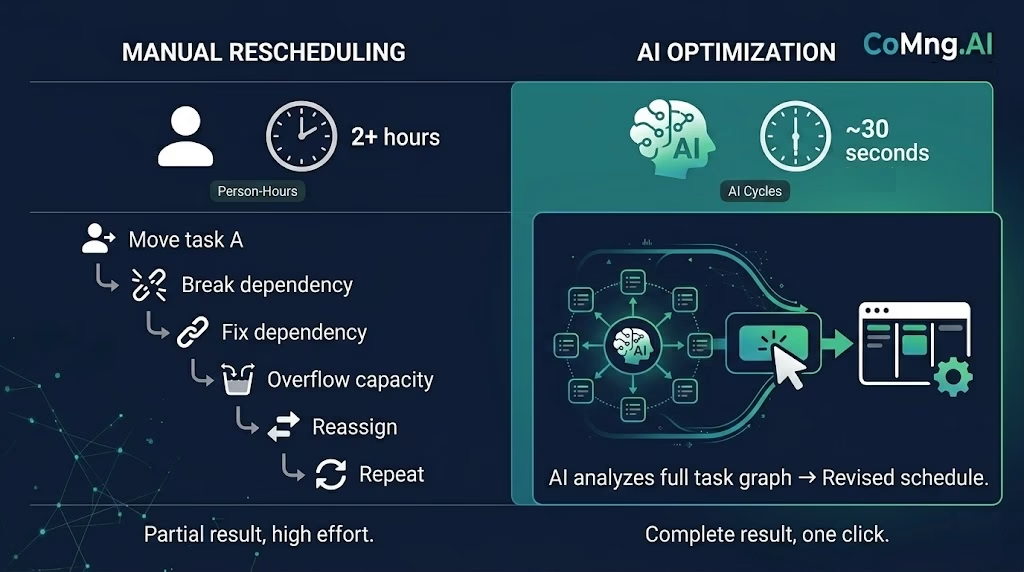
So you end up in a loop: fix Task A’s date, see that it breaks Task B, fix Task B, see that it breaks Task C, fix Task C, see that it overallocates Alex, move Alex’s tasks, repeat. Projects with 50+ tasks can make this a multi-hour exercise – and one that most project managers dread enough to postpone.
The Context Problem
Manual rescheduling also loses context. When you move dates in a Gantt chart, you’re operating on one variable at a time. You know the dependency chain but you may not hold in your head simultaneously that: Alex is already at capacity on June 3rd, the integration testing milestone is a hard client deadline, and three tasks tagged “Quick Win” could be parallelized if their assignees were swapped.
An AI can hold all of that context simultaneously and propose a schedule that accounts for all of it in a single pass.
The “Good Enough” Problem
Because manual rescheduling is painful, most teams don’t do it thoroughly. They push the dates that obviously need pushing, leave the rest, and accept a gradually degrading plan that nobody quite believes anymore. By week 6 of a 12-week project, the schedule is a fiction everyone politely ignores.
AI optimization makes it cheap enough to do properly – after every scope change, after every sprint, after every batch of new tasks. The schedule stays real.
How Optimize Timeline Works
What the AI Analyzes
When you trigger Optimize Timeline, the AI reads every element of your current project state:
- Task effort estimates – how long each task is expected to take
- Dependencies – which tasks must finish before others can start
- Assignee workloads – who has what already assigned and when
- Current due dates – what’s already late, what’s close, what has slack
- Milestone dates – what’s a hard deadline versus a target
It combines this with whatever context you add in the optional text field. That context box is worth taking seriously – it’s where you tell the AI things it can’t infer from the data alone.
Examples of useful context:
- “Key resources are unavailable until May 15”
- “The client demo is a hard date on June 1”
- “We’re rescheduling because we lost 2 weeks due to scope changes”
- “Developer A is only 50% available this month”
- “Expedite tasks with ‘basket1’ tags”
Without context, the AI works from the data. With context, it works from the data and your constraints – which produces a significantly more realistic and usable schedule.
What the AI Produces
The result is a revised schedule where:
- No task is scheduled in the past. All rescheduled dates start from today or later.
- Dependencies are respected. Task B won’t be scheduled before Task A if it depends on it.
- Team workloads are considered. The AI won’t stack three full-effort tasks on one person on the same day.
- Missed milestones are pushed forward if they can no longer be met, rather than left as false targets.
- The schedule is achievable – a realistic plan, not an optimistic fiction.
The Two Apply Modes – and When to Use Each
This is where Optimize Timeline becomes genuinely differentiated from any scheduling feature you’ve seen in traditional project planning tools.
Most tools that offer “auto-scheduling” have exactly one mode: they apply the changes. That’s fine for personal projects. It creates real problems for teams with stakeholders, governance requirements, or contractual commitments tied to dates.
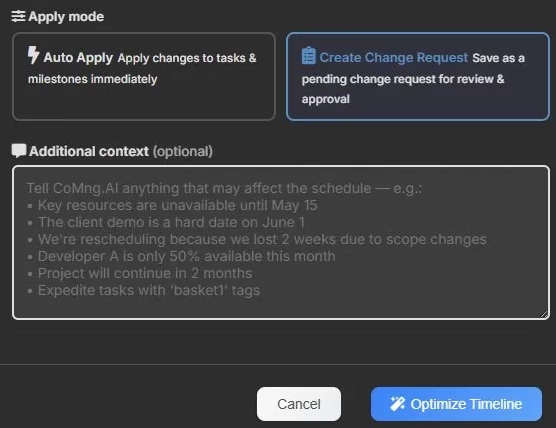
CoMng.AI gives you a choice of two modes before the AI runs.
Auto Apply
Changes are written directly to your tasks, subtasks, and milestones the moment the AI finishes. No intermediate step.
After the run, a results panel lists every item that changed – task name, previous date, new date, and the AI’s reasoning for the change. You can review exactly what happened. You can’t undo it automatically, so the context box matters: put careful thought into what you tell the AI before you run.
When to use Auto Apply:
- Internal reschedules where no stakeholder approval is required
- After a sprint ends and you need to re-level the next sprint’s tasks (use tags with sprint name or number to
- After adding a batch of new tasks that have disrupted the existing schedule
- When you want a quick first pass at a revised schedule and will manually adjust afterward
- Small projects where you’re the only decision-maker
Create Change Request
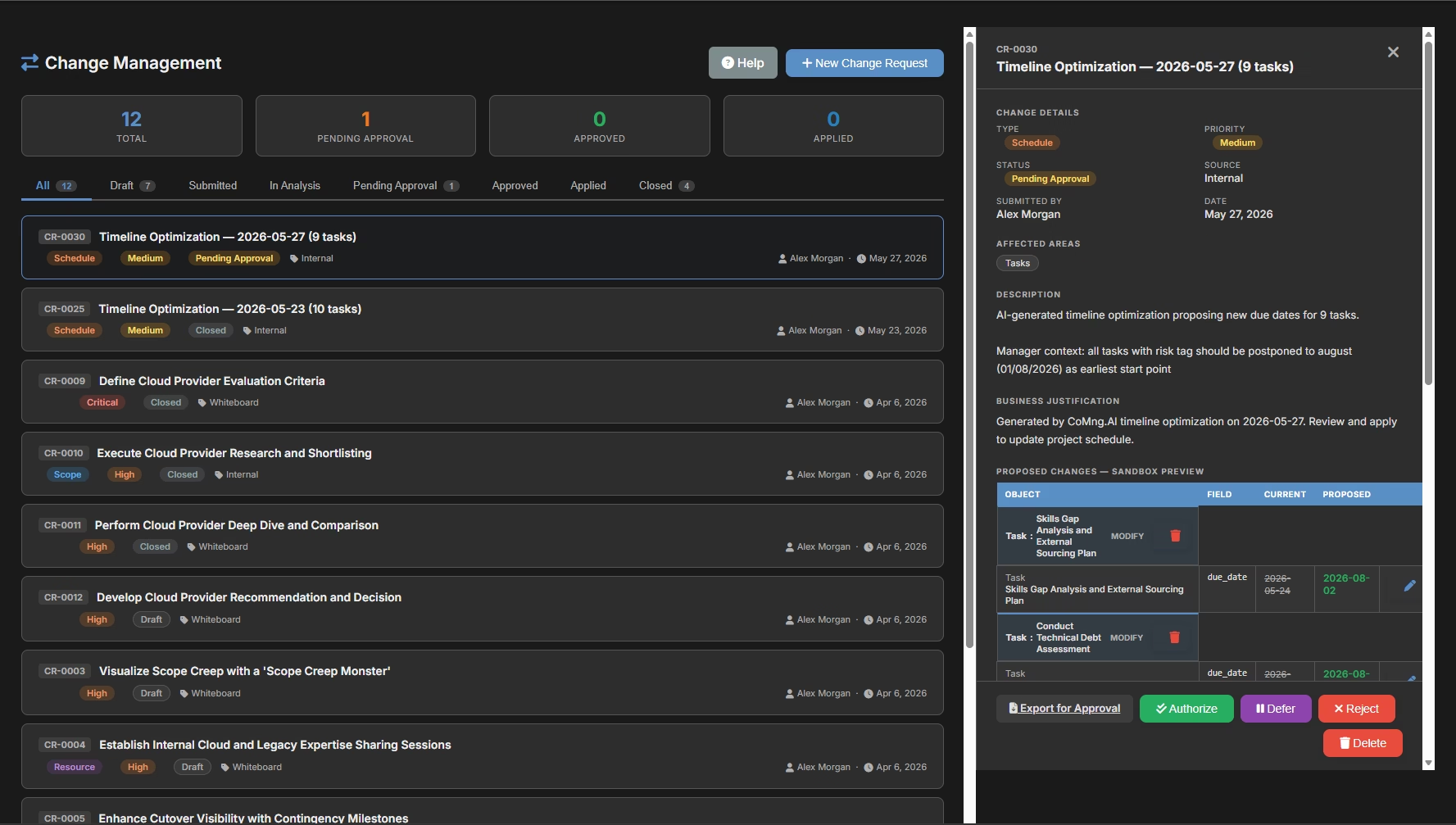
This mode doesn’t touch your project at all when the AI runs. Instead, the AI’s complete proposed schedule is saved as a formal Change Request in CoMng.AI’s Change Management module, with status set to Pending Approval. You’re redirected there immediately to review the full set of proposed changes.
From the Change Request view, an approver can:
- Review every proposed date change with its reason
- Accept the full change request (all changes apply at once)
- Reject it (nothing changes)
- Edit individual items before approving
When to use Create Change Request:
- Any schedule change that requires stakeholder sign-off before taking effect
- Projects under formal governance where schedule changes must be documented
- When a client or executive needs to approve revised delivery dates before they’re committed
- When you want a reviewable record that the schedule was formally changed and approved
- Regulated industries where audit trails are required
This is the mode that separates CoMng.AI’s integrated project management approach from tools that treat scheduling as a purely internal PM activity. In real project environments, schedule changes have consequences for people outside the team – and those people deserve to see and approve them before the schedule reflects a new reality.
Practical Scenarios: When You’d Actually Use This
Scenario 1: Scope change absorption
Your client adds 8 tasks mid-project. You add them to CoMng.AI with effort estimates and dependencies. Now the schedule is broken – several tasks are overlapping and a milestone is unreachable.
Open Optimize Timeline. Add context: “8 new tasks added due to scope expansion. Client demo milestone on June 15 is firm.” Select Create Change Request – you’ll need to show the client what changed and get their acceptance of the revised delivery dates. Click Optimize.
The AI rebuilds the schedule, respects the June 15 hard date, distributes the new tasks without overloading anyone, and creates a Change Request you can share for approval. The client signs off. The CR applies. Your schedule is real again in under 30 minutes.
Scenario 2: Team member availability change
A developer goes on leave for two weeks starting tomorrow. Half their tasks need redistribution.
Open Optimize Timeline. Add context: “Developer A unavailable May 20–June 3. Redistribute their tasks to the rest of the team.” Select Auto Apply – this is an internal staffing adjustment, no stakeholder approval needed. Click Optimize.
The AI reassigns and reschedules Developer A’s pending tasks, balancing across the available team. The results panel shows every change. Review it, confirm it looks reasonable, close the panel. Done.
Scenario 3: Post-sprint cleanup
Sprint ends. 6 tasks didn’t complete, 3 are still in progress, and the next sprint’s dates are all wrong as a result.
Open Optimize Timeline. No context needed – the data tells the story. Select Auto Apply. Click Optimize. The AI re-levels the schedule from today, respects dependencies, and you have a realistic sprint backlog to work from. Takes less than a minute.
What Makes This Different From “Auto-Scheduling”
Traditional auto-scheduling in tools like Microsoft Project has existed for decades. So it’s fair to ask: what’s actually new here?
A few things that matter:
It reasons, not just calculates. Classic auto-scheduling applies date arithmetic – push task A out 2 days, shift everything that depends on it by 2 days. It doesn’t evaluate whether the result is realistic, whether it overloads a resource, or whether a specific milestone is a hard constraint. The AI in CoMng.AI evaluates the full context simultaneously and produces a schedule that reflects intent, not just arithmetic.
The context field changes the output. You can tell it about constraints that aren’t in the data – a key resource being part-time, a hard deadline not yet in the system, a decision to deprioritize certain task groups. No traditional scheduling algorithm has an input box for “here’s what I know that the data doesn’t.”
The Change Request path is genuinely governed. Most auto-scheduling tools apply changes and let you undo them. CoMng.AI’s CR path creates a formal record: what was proposed, who reviewed it, who approved it, and when. For enterprise project tracking software use cases, this isn’t a nice-to-have – it’s required.
It knows your team. Because CoMng.AI has full context across tasks, assignees, workloads, and roles, it doesn’t just reschedule – it rebalances. It knows that Alex already has 36 tasks and that EasyData (contractor) has 21, and it accounts for that in how it distributes rescheduled work.
Getting Started
Optimize Timeline is available from the toolbar dropdown on any project with tasks.
The three-step run:
- Click Optimize Timeline in the main tasks toolbar.
- Choose Auto Apply or Create Change Request
- Add context if you have relevant constraints, then click Optimize Timeline
The one habit that makes it most useful: run it after every significant change to your project – new task batches, scope changes, team availability shifts. The cost is 60 seconds. The return is a schedule your team can actually trust.
The 80–90% reduction in planning time that CoMng.AI delivers doesn’t come from one feature – it comes from a system where the AI does the heavy analytical work across every module. Timeline optimization is one of the clearest examples of that. What used to be a 2-hour exercise in cascading date management is now a 60-second action with full governance support built in.
Ready to stop fighting your schedule? Start free at CoMng.AI and run your first timeline optimization in under 5 minutes.
Relevant reading:
- Beyond Status: Three Kanban Views for Better Team Visibility
- How to Import a Task List from a Spreadsheet, PDF, or Screenshot”
- Critical Path Method explained – Wikipedia