
You have a task list. It’s just in the wrong place.
Maybe it’s a 47-row Excel file your predecessor built in 2022. Maybe it’s a PDF scope document from a client. Maybe it’s a whiteboard photo you took at last week’s kickoff. The work is defined – you just can’t get it into your project management system without spending two hours copying and pasting.
That’s not a workflow problem. That’s a tool problem. And it’s been frustrating teams for years.
By the end of this guide, you’ll know exactly how to import a task list from a spreadsheet, PDF, or screenshot – and why modern AI-native platforms handle this in ways traditional task tracking apps simply can’t.

What Does “Import a Task List” Actually Mean?
Importing a task list means taking a structured or semi-structured list of work items – wherever they currently live – and converting them into actionable tasks inside your project management system, with all the relevant fields intact: names, owners, due dates, priorities, and dependencies.
This matters because most teams don’t start projects from scratch. They start from something – a handoff document, a client brief, a scope sheet, an old project file. The ability to import that existing structure directly into your task management tools saves hours of manual data entry and eliminates the transcription errors that come with it.
Key takeaway: Importing tasks isn’t just a convenience feature. It’s the difference between starting a project in 10 minutes versus 2 hours – and between clean data and a spreadsheet full of copy-paste mistakes.
Why This Problem Is Harder Than It Looks
The Format Mismatch Problem
Every format stores task data differently.
A spreadsheet has rows and columns, but the column names are inconsistent (“Task,” “To-Do,” “Action Item,” “Deliverable” – all meaning the same thing). A PDF has no structure at all from a data standpoint – it’s formatted text that happens to look like a list. A screenshot is just pixels.
Traditional project task management tools solve this by requiring CSV imports with rigid column mapping. You get a template, you reformat your data to match it, you import, you fix the errors, you repeat. Straightforward – but tedious, and completely broken for anything that isn’t already a clean spreadsheet.
The Missing Context Problem
Even when the format works, the context doesn’t transfer. A cell that says “Design landing page” tells the system nothing about dependencies, estimated effort, who should own it, or what phase it belongs to. That context is in someone’s head, in comments, in the surrounding document text.
So you end up with a technically successful import and a practically useless task list – everything is in the system, but nothing has the structure needed to actually run the project.
The Screenshot and Photo Problem
This one gets no attention but it’s extremely common. A team meets in person, fills a whiteboard with work breakdown, snaps a photo, and then… someone has to manually type it all up. There’s no CSV for a whiteboard. There’s no import template for a phone photo.
Until recently, this was just accepted as manual work.
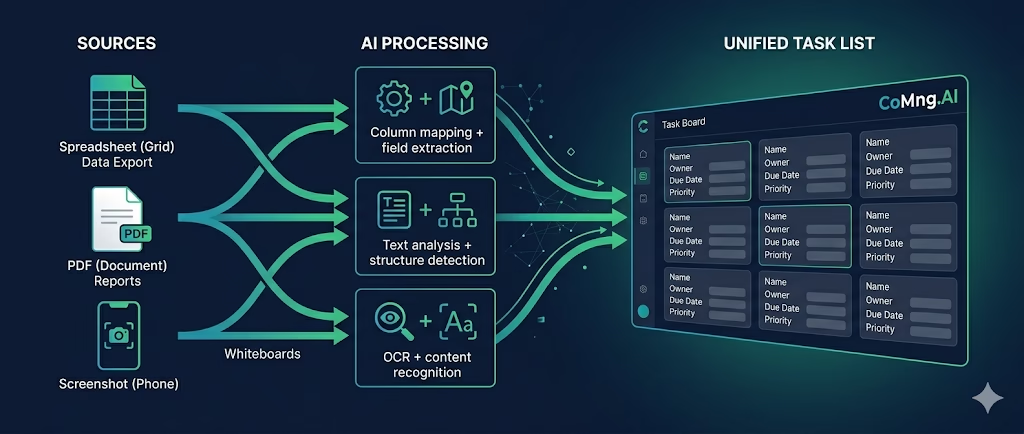
How to Import Tasks: Three Formats, Step by Step
From a Spreadsheet (CSV or Excel)
This is the most structured format, and the most forgiving to work with.
What works well:
- Any spreadsheet with one row per task
- Column headers don’t need to match exactly – AI can map “Deliverable” to “Task Name” automatically
- Multiple sheets can often be processed separately as phases or milestones
The traditional approach (slow):
- Export your spreadsheet as CSV
- Download the import template from your PM tool
- Remap your columns to match the required format
- Re-export
- Upload and fix validation errors
- Manually add missing fields (owner, priority, dependencies)
The AI-native approach (fast): Upload the file directly. The system reads column intent – not just column names – and maps fields intelligently. If a column called “Who’s Responsible” maps to task ownership, the AI figures that out without you needing to rename anything.
CoMng.AI’s document import accepts spreadsheets and CSV files directly. The AI analyzes the structure, extracts task data, and creates populated tasks – including effort estimates and suggested assignees based on the content – without any template reformatting.
From a PDF
PDFs are the worst format for task import – which is exactly why this is such a common pain point. Scope documents, SOWs, project charters, and client briefs all arrive as PDFs. And they’re full of tasks buried in paragraphs.
The problem: PDFs don’t have “rows.” A sentence like “The agency will deliver three social media assets per week, reviewed by the client on Fridays” contains multiple implied tasks. No standard import tool can read that.
What AI-powered import does differently:
CoMng.AI’s knowledge base accepts PDF uploads. The AI doesn’t just extract text – it analyzes content. It identifies action items, deliverables, deadlines, and responsible parties embedded in prose. It then generates structured tasks from that understanding.
Practical workflow:
- Upload the PDF to CoMng.AI (drag-and-drop into the Knowledge Base or Project Creator)
- The AI summarizes the document and identifies all task-like items
- Review the extracted list – add, remove, or edit tasks before confirming
- Tasks populate directly into your project with titles, notes, and initial estimates
This isn’t perfect for every document – a 200-page technical specification will produce a noisy output that needs pruning. But for a 5–20 page project brief or SOW, this is genuinely faster than reading the document and typing.
From a Screenshot or Photo
This is the format nobody talks about, but every team encounters.
Common scenarios:
- Whiteboard photo from a planning session
- Screenshot of a Trello board or Asana list you’re migrating away from
- Photo of a handwritten task list
- Screenshot of a Slack thread where someone listed out deliverables
How it works in CoMng.AI:
The system accepts image uploads. The AI performs OCR (optical character recognition) combined with content analysis. It doesn’t just read the text; it interprets the structure. A whiteboard with sticky notes gets parsed differently than a columnar list. Handwritten items get transcribed and categorized.
Realistic expectations: Handwriting quality matters. A messy whiteboard produces messier output than a clean printed list. But even a rough import – where you get 80% of the tasks extracted automatically – is faster than starting from scratch.
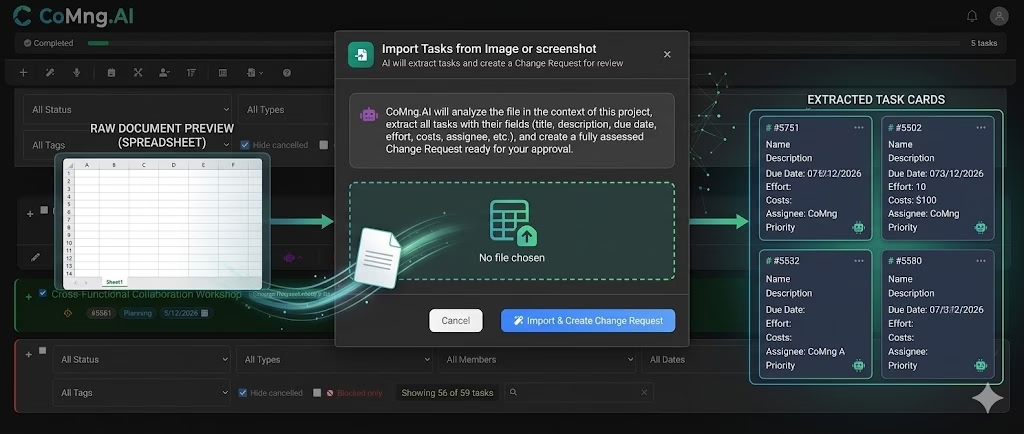
Seeing This in Action: CoMng.AI’s Import-to-Project Pipeline
Here’s what separates AI-native task import from “we support CSV uploads.”
When you import tasks into CoMng.AI – regardless of format – the AI doesn’t just store them. It reasons about them. Every imported task becomes a starting point for the autonomous workplan engine to:
- Detect dependencies between tasks automatically (Task B logically requires Task A)
- Suggest assignees based on task content and your team’s skill profiles
- Estimate effort using AI analysis of the task scope
- Flag risks based on timeline gaps, resource constraints, or missing definition
- Generate subtasks where a single imported item represents a complex deliverable
A client hands you a 12-page SOW. You upload it. In under 10 minutes, you have a structured project with 40–60 tasks, estimated timelines, and a risk log – all derived from that single document.
That’s not an import feature. That’s an autonomous execution system that starts working the moment your data arrives.
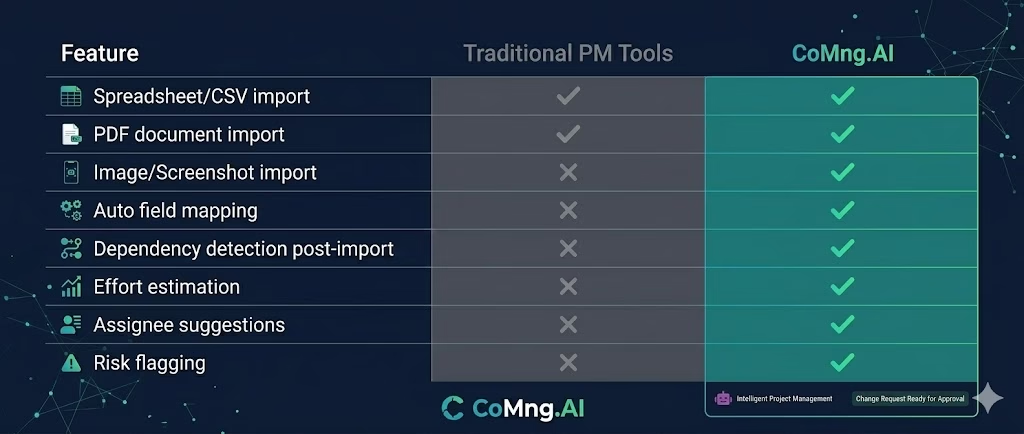
Common Mistakes When Importing Task Lists
1. Importing without reviewing first
Garbage in, garbage out. A task list built by someone who didn’t understand the project scope will create a confusing project. Before importing – especially from a legacy spreadsheet – spend 10 minutes pruning and clarifying the source data. The import will be cleaner and the AI analysis will be more useful.
2. Treating the import as the finished plan
An imported task list is a starting point, not a completed project plan. Dependencies, effort estimates, and assignees need validation after import. Use the AI’s suggestions as a first draft, not a final answer.
3. Importing duplicates from multiple sources
If your task list exists in both a spreadsheet and a project brief PDF, importing both will create duplicates. Decide on the authoritative source before importing, or deduplicate manually afterward.
4. Ignoring the context your AI tool needs
The richer the source document, the better the output. A spreadsheet with just task names produces minimal AI enrichment. A spreadsheet with task names, descriptions, and notes gives the AI enough context to build a genuinely useful workplan. Add context before importing if you have it.
What to Look For in a Task Import Feature
If you’re evaluating software to manage projects and import capability matters to you, here’s a quick decision framework:
| Question to Ask | Why It Matters |
|---|---|
| Does it accept PDFs and images, not just CSV? | Real-world task data lives in all formats |
| Does the AI map fields, or do I map them manually? | Manual mapping takes 20–40 minutes per import |
| Does it detect dependencies post-import? | Otherwise you rebuild relationships from scratch |
| Does it enrich imported tasks with estimates and suggestions? | The difference between data storage and actual planning |
| Can I review and edit before confirming? | You want control, not a black box |
Most traditional task tracking apps pass the first test (CSV import) and fail the rest. CoMng.AI is built to pass all five – because import isn’t a feature here, it’s an entry point into the full autonomous execution pipeline.
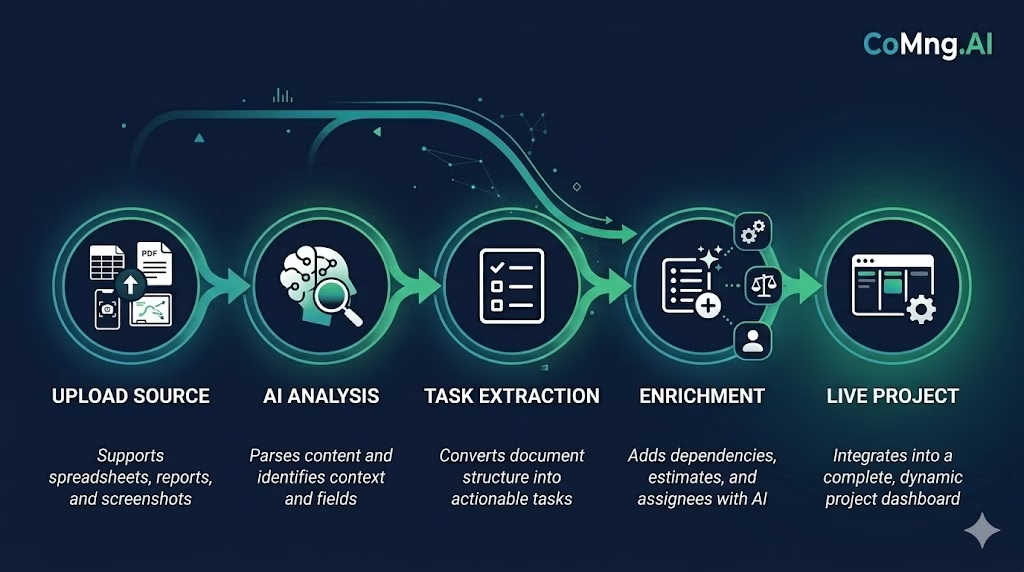
Getting Started: Your First Task Import in CoMng.AI
If you have an existing task list sitting somewhere – here’s the fastest path forward.
Step 1: Sign into CoMng.AI and open or create a project.
Step 2: Navigate to the Knowledge Base or use the Create Project from Documents feature in the project creation wizard.
Step 3: Upload your file – spreadsheet, PDF, or image. Drag and drop works for all three.
Step 4: Review the AI’s extraction summary. Edit task names, remove noise, clarify anything that’s ambiguous.
Step 5: Confirm the import. The system generates your task list, applies AI enrichment (dependencies, estimates, assignees), and creates your initial workplan.
From upload to live project: typically under 10 minutes for a standard scope document. For teams with large legacy spreadsheets, the time savings over manual entry can be measured in hours – not minutes.
The Bottom Line
The friction of moving task data from one format to another is one of those invisible time sinks that nobody talks about but everyone experiences. Spreadsheets, PDFs, photos, whiteboards – your work is defined. It just doesn’t live where your project task management tools expect it.
The tools that solve this well don’t just accept more file types. They use AI reasoning to turn raw task data into a structured, enriched, actionable project – the moment the file lands.
That’s the gap CoMng.AI was built to close. And it’s why the import feature isn’t a checkbox here – it’s the starting line for everything the autonomous workplan engine does next.
Ready to stop retyping task lists? Upload your first document and see your project build itself – start free at CoMng.AI.
Leave a Reply